













Canon’s Live Switcher Mobile App: Your Key to Multi-camera Livestreams
Introducing another camera angle…or two…or even three can immediately make your livestream more engaging and professional-looking. And Canon’s Live Switcher Mobile app makes doing it easy! Available on iOS, the app enables multi-angle livestreaming to video streaming platforms with supported cameras such as certain iPhone/iPad models, the EOS R50 V, and the PowerShot V1.
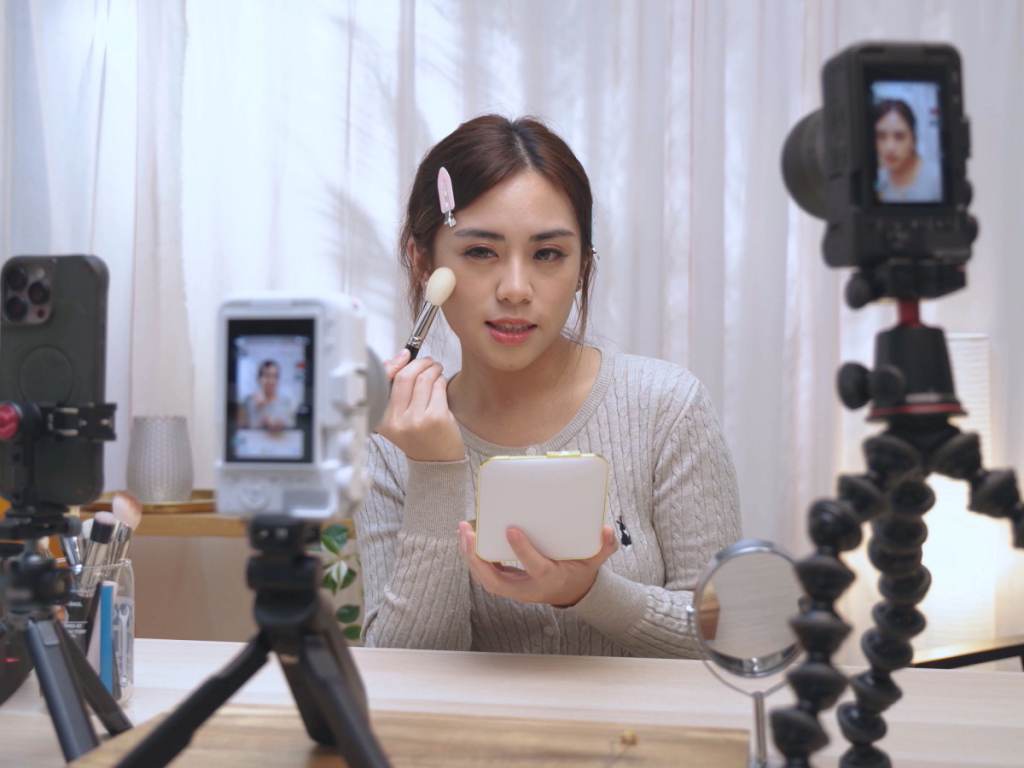
First things first: Why livestream from multiple angles?
- It’s more visually engaging
- Clearer demonstrations
- Tells a better story
Livestreaming is a powerful way to build a connection with your audience, simply because it’s more interactive. But no matter how well you interact with your audience, a single static view eventually gets boring. It doesn’t matter how interesting your topic is, what you’re doing in front of the camera, or even how physically attractive you are: the human brain loses interest after staring at the same thing for too long.
From interviews and documentaries to variety shows and movies, showing scenes from multiple angles has always been a way to keep an audience hooked. It makes things look more interesting, unveiling details that tell a fuller story. Think closeups of your interviewee’s candid reactions to your questions, yoga poses shown in greater detail, or your on-location audience singing along to your gig.
Sounds cool! How do I do it?
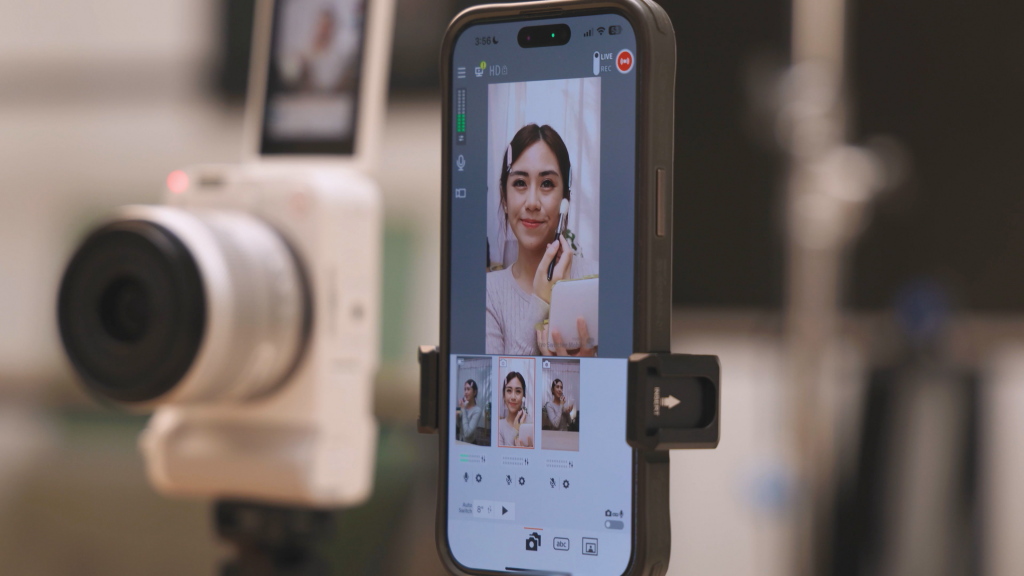
Believe it or not, livestreaming with multiple cameras doesn’t require complicated setups with extra hardware and lots of wires. With Canon’s Live Switcher Mobile app, all you need is:
- A main smartphone: a compatible smartphone/tablet to be used for switching and sharing. Can also act as a camera.
- Secondary camera(s): Compatible smartphone/ EOS R50 V/ PowerShot V1*/ non-Canon camera compatible with custom RTMP input
- Internet connection
- Livestreaming account with YouTube//Facebook/ Twitch** or livestreaming URL and key.
* Requires connection via Camera Connect app and custom RTMP input.
**Twitch support requires Live Switcher Mobile App Ver. 1.2 or later.
Do I need to use a Canon camera?
While app pairing is more direct on certain Canon cameras like the EOS R50 V, you don’t need a Canon camera for the Live Switcher Mobile app to work. However, your non-Canon camera must support custom RTMP input. You can also use a supported smartphone camera. Click here for more details on compatible devices.
You can connect up to three cameras to the app. They can be a mix of smartphone and standalone cameras. That’s three different camera angles to present with!
What exactly does the app let me do?
1. Switch between different cameras!
Watch: Multi-cam livestreaming
The main function of the Live Switcher Mobile App is, of course, to enable you to switch between different camera views. While livestreaming, simply tap on the view you want to show.
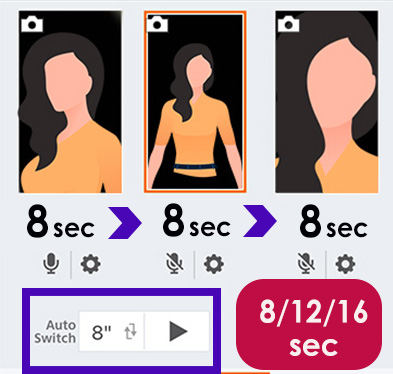
Auto switching available
If you’re doing a demo, standing away from the main smartphone, or basically in a situation where manually switching cameras is inconvenient, fret not—the app is well prepared for that. There’s an Auto Switch function that automatically toggles between different angles every 8, 12, or 16 seconds, so you can continue performing or engaging without extra demand on precious mental bandwidth!
Know this: If you aren’t using your main smartphone’s camera, you can connect up to three secondary cameras!
2. Display captions and images*
Watch: Graphic overlay on the Live Switcher Mobile App
* Still image overlay feature requires a paid plan.
Live Switcher Mobile App lets you display pre-prepared text captions so you can give your viewers extra context, or make those instructions easier to follow. Tap on a caption to display it; tap again to turn it off! You can choose from multiple fonts, change the text colours, and position your captions anywhere on the screen! It’s possible to apply up to 2 different text/graphic layers simultaneously.
A paid plan allows you to import and display still image overlays such as logos and custom-made titles, so you can make your onscreen graphics even more distinct.
3. Broadcast your screen!
Watch: Screen broadcasting
Live Switcher Mobile App isn’t just for broadcasting camera footage: you can also use it to broadcast your phone screen. Perfect for tutorials, gaming livestreams, or simply sharing pictures and videos on your phone with your viewers. Combine it with the Picture-in-Picture function described to show reaction shots or yourself talking—livestreams are easier to relate to when there’s human presence!
4. Display a Picture-in-Picture (PinP)
Besides switching between different cameras, the Live Switcher Mobile App supports Picture-in-Picture (PinP) display, where you can show feed from a second camera in a smaller video window within the main feed. It’s the function you want to use for showing reaction shots, but it also makes live demos and performances more engaging.
With a paid plan, in addition to camera footage, you can also show pre-prepared videos and still images in the smaller screen.
Know this: Recording is possible!
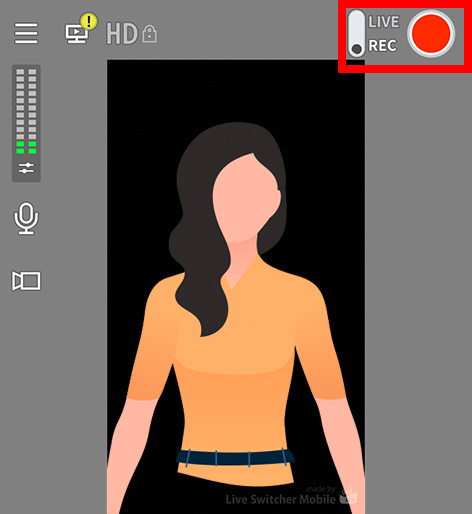
Tap the red button to record a rehearsal video in “REC” mode. Tap the same button again to stop. The video will be saved in your gallery as an MP4 file.
5. Display viewers’ comments
When streaming to YouTube, Facebook, and Twitch, you can also see your viewers’ comments on your control display, making it easier to respond to them in real time. That’s right: everything in one screen!
6. Mix audio
With the Live Switcher Mobile app, it’s possible to control audio sources. You can mute or control the volume of the audio from any of your feeds individually, or use only the audio (and not the camera feed) from a connected device. No more weird echoes, feedback loops, or background sounds overpowering your commentary!
Frequently asked questions
1. What devices are supported?
As of 26 August 2025, the Live Switcher Mobile app is supported on:
- EOS R50 V
- PowerShot V1*
- iPhones and iPads (iOS 16/17/18, iPadOS 16/17/18)**
- Non-Canon cameras that support custom RTMP input
More details at https://app.ssw.imaging-saas.canon/app/en/lsm.html
* Requires connection via Camera Connect and custom RTMP connection
**Does not guarantee operation on all devices. Canon has confirmed operation on iPhone 13, iPhone 14, iPhone 15, iPad (9th)
2. Can I livestream in vertical orientation?
Yes. The Live Switcher Mobile app supports both vertical and horizontal orientation livestreaming.
3. How do I connect my supported Canon camera?
The steps depend on your camera model. Refer to the basic guide for more details.
Live Switcher Mobile App Basic Guide
4. Does the app support livestreaming to platforms other than YouTube, Facebook, and Twitch?
You can livestream to any RTMP provider via a streaming URL and stream key. However, viewer comments will not be visible.
5. Do I need to pay to use the app?
You can use most of the app features for free. However, the paid plan removes the watermark, hides ads, and enables greater customisation.
More details in:
Live Switcher Mobile App Free and Paid Plans
6. Where can I download the Live Switcher Mobile app?
Click/tap the button below to download it from the App Store.